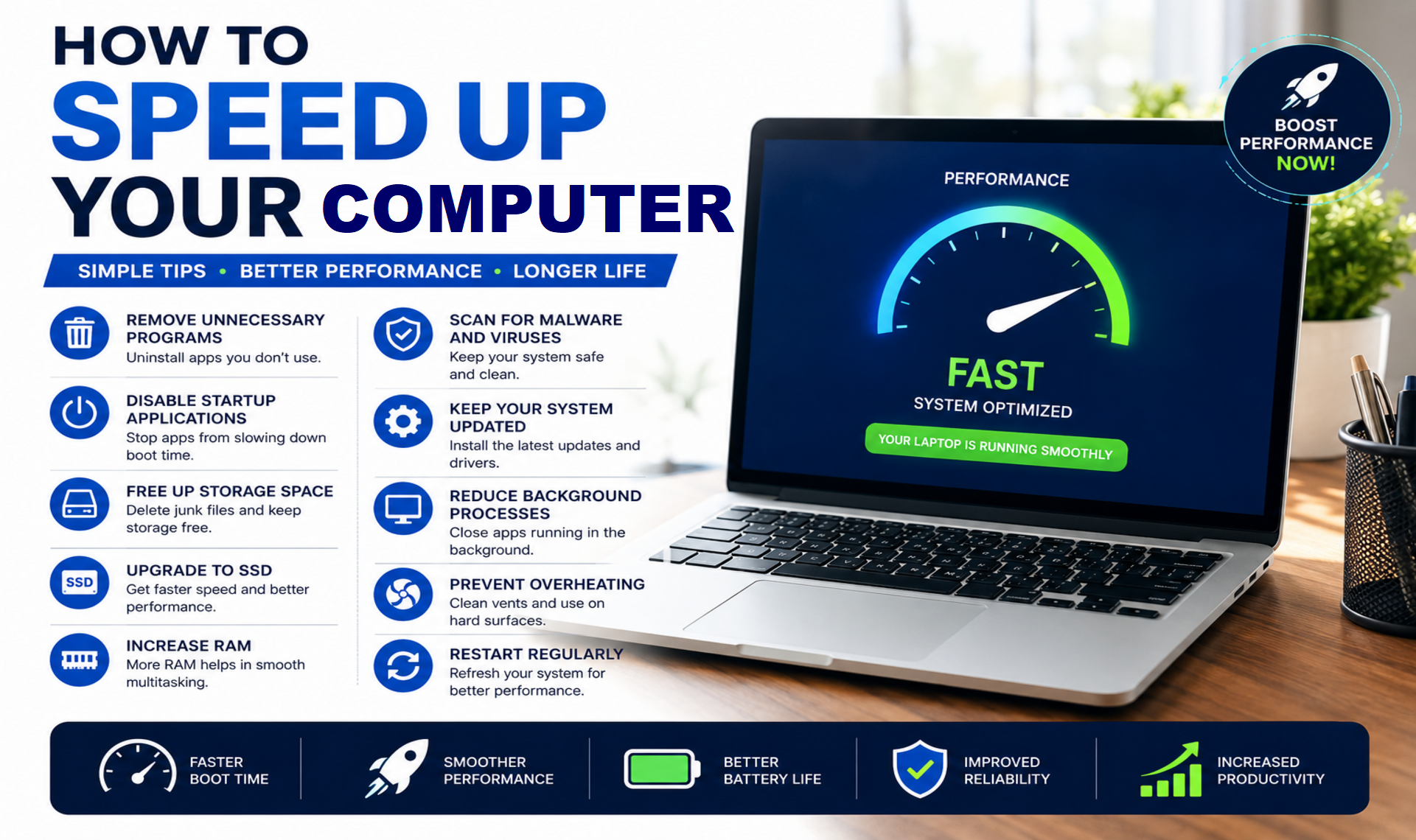
How to Speed Up Your Computer: A Complete Guide to Improving Performance
A computer that performs slowly can reduce productivity and make everyday tasks more difficult in today’s technology-driven world. Whether it is used for work, education, entertainment, or web browsing, poor performance can lead to delays and frustration. However, replacing your computer is not always the only solution. By recognizing the factors that contribute to slow performance and implementing practical optimization methods, you can improve its speed, enhance its overall performance, and prolong its useful life.
Why Do Computers Become Slow?
Over time, computers accumulate unnecessary files, software, and background processes that consume valuable system resources. Common causes of a slow computer include:
- Too many startup programs
- Low available storage space
- Malware and viruses
- Outdated operating systems or drivers
- Insufficient RAM
- Fragmented hard drives
- Excessive background applications
- Overheating issues
Identifying the root cause is the first step toward improving performance.
Guides To Speed Up Your Computer
1. Remove Unnecessary Programs
Many users install software they rarely use. These applications occupy storage space and may run background processes that consume memory and processing power.
To improve performance:
- Uninstall programs you no longer need.
- Remove trial software and bloatware.
- Keep only essential applications installed.
A cleaner system allows your computer to allocate resources more efficiently.
2. Disable Startup Applications
Some applications automatically launch when your computer starts, increasing boot time and slowing overall performance.
To manage startup programs:
- Open Task Manager on Windows.
- Navigate to the Startup tab.
- Disable unnecessary applications.
- Clean cache, cookie, log files.
Reducing startup programs can significantly speed up boot times and improve responsiveness.
3. Free Up Storage Space
When your storage drive becomes nearly full, system performance often declines. Temporary files, downloads, and duplicate files can consume large amounts of storage.
Consider these steps:
- Delete unnecessary files.
- Empty the Recycle Bin.
- Remove duplicate documents and media.
- Use disk cleanup tools.
Keeping at least 15–20% of your storage free helps maintain optimal performance.
4. Upgrade from HDD to SSD
One of the most effective upgrades for older computers is replacing a traditional Hard Disk Drive (HDD) with a Solid State Drive (SSD). However, this depends on whether the old computer’s HDD can be replaced with an SSD. If an internal replacement is not possible, using an external SSD is a suitable alternative.
Benefits of SSD’s include:
- Faster startup times
- Quicker application loading
- Improved file transfer speeds
- Better overall system responsiveness
An SSD can make an older computer feel almost new again.
5. Increase RAM
Random Access Memory (RAM) allows your computer to handle multiple tasks simultaneously. If your computer struggles when running several applications, upgrading RAM may provide a noticeable improvement.
Additional RAM helps:
- Improve multitasking
- Reduce lag
- Enhance software performance
- Support modern applications
Before upgrading, check your computer’s maximum RAM capacity.
6. Scan for Malware and Viruses
Malicious software can consume system resources and significantly reduce performance.
To protect your computer:
- Install reputable antivirus software.
- Run regular security scans.
- Avoid downloading files from untrusted sources.
- Keep security software updated.
A malware-free system runs more efficiently and securely.
7. Keep Your Operating System Updated
Software updates often include performance improvements, bug fixes, and security patches.
Regularly update:
- Operating system
- Device drivers
- Web browsers
- Installed applications
Updated software ensures better compatibility and optimal performance.
8. Reduce Background Processes
Many applications continue running in the background even when you’re not actively using them.
To improve speed:
- Close unused applications.
- Disable unnecessary background services.
- Monitor resource usage through Task Manager.
Reducing background activity frees up valuable CPU and memory resources.
9. Prevent Overheating
Excessive heat can cause your computer to slow down as a protective measure.
To keep your computer cool:
- Clean air vents regularly.
- Remove dust from cooling fans.
- Use the computer on hard, flat surfaces.
- Consider a cooling pad.
Maintaining proper airflow helps ensure consistent performance.
10. Restart Your Computer Regularly
Many users leave their computers running for days or weeks without restarting. A simple restart clears temporary processes and refreshes system resources.
Benefits include:
- Improved memory management
- Reduced software glitches
- Better system responsiveness
Restarting your computer regularly is one of the easiest performance improvements you can make.
In Summary
A slow computer does not always mean it’s time to buy a new one. In many cases, simple maintenance tasks such as removing unnecessary software, freeing storage space, upgrading to an SSD, increasing RAM, and keeping the system updated can dramatically improve performance. By following these best practices, you can enjoy a faster, smoother, and more productive computing experience while extending the life of your computer.
Want to Learn More? Explore our detailed articles on the topics covered in this guide. Click the highlighted links to dive deeper or visit our blog for additional guides, tips, and helpful resources. Stay informed and continue building your knowledge.
You can rely on www.askmyquestions.com for trusted guidance and assistance.