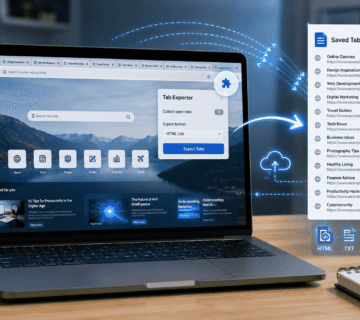
Installing an extension in Brave is similar to installing one in Google Chrome.
Step 1: Open Brave Browser
Launch Brave on your computer.
Ensure you’re using the latest version for the best compatibility and security.
Step 2: Visit the Chrome Web Store
Because Brave is built on Chromium and supports Chrome extensions, you can install most extensions directly from the Chrome Web Store: https://chromewebstore.google.com/.
Navigate to the extension marketplace and search for the extension you want.
Step 3: Search for an Extension
Use the search bar to locate the extension you’re interested in.
You can browse categories or search by name.
Popular categories include:
- Productivity
- Security
- Privacy
- Shopping
- Developer tools
- Accessibility
- Education
Step 4: Review the Extension
Before installing, carefully review:
- Features
- Screenshots
- User ratings
- Reviews
- Developer information
- Permissions requested
Pay special attention to permissions that allow access to all websites or sensitive browser data.
Step 5: Click “Add to Brave”
In some cases, the button may display Add to Chrome because Brave uses Chrome-compatible extensions.
Click the installation button.
A confirmation dialog will appear displaying the permissions requested by the extension.
Review them carefully.
If you’re comfortable proceeding, click Add Extension.
Step 6: Complete Installation
Once installed:
- The extension icon may appear on the toolbar.
- Some extensions launch a setup wizard.
- Others display a welcome page.
- Many begin working immediately.
Your extension is now ready to use.
How to Pin Extensions to the Toolbar
If you want quicker access to an extension:
- Click the puzzle-piece Extensions icon.
- Locate the extension.
- Click the Pin icon beside it.
The extension will remain visible on the toolbar for easy access.
How to Manage Extensions in Brave
Over time, you may install multiple extensions.
To manage them:
- Click the menu button.
- Select Extensions.
- Choose Manage Extensions.
From this page, you can:
- Enable or disable extensions.
- Remove extensions.
- View permissions.
- Configure settings.
- Manage site access.
- Inspect extension details.
Regular maintenance helps keep Brave fast and secure.
How to Remove an Extension
If you no longer need an extension:
- Open Manage Extensions.
- Locate the extension.
- Click Remove.
- Confirm the removal.
You can also right-click the extension icon on the toolbar and select Remove from Brave.
Removing unused extensions helps reduce security risks and conserve system resources.