
How to Install and Use the Wordfence Plugin to Block an IP Address in WordPress
What Is an IP Address?
An IP address is a numerical address associated with a device or network communicating over the internet.
When someone visits your WordPress website, the server can receive information about the network address associated with that request.
Wordfence can display visitor information through its Live Traffic feature, allowing administrators to investigate requests made to the website.
This information can help identify patterns such as repeated login attempts, suspicious URLs, aggressive scanning, or requests associated with known attacks.
Why Would You Block an IP Address?
There are several reasons why a WordPress administrator might block an IP address.
For example, you may notice an address repeatedly:
- Attempting to log in with different usernames.
- Requesting suspicious or nonexistent WordPress files.
- Scanning for vulnerable plugins.
- Sending spam.
- Repeatedly triggering firewall rules.
- Making excessive automated requests.
- Attempting suspicious administrative actions.
Wordfence recommends confirming that an IP address is malicious before manually blocking it.
A block should therefore be based on evidence rather than simply because an IP address appears unfamiliar.
How to Find a Suspicious IP in Wordfence
First, log in to your WordPress dashboard.
Open:
Wordfence → Tools → Live Traffic
Depending on your Wordfence version and configuration, you can examine visitor requests, IP addresses, usernames, requested URLs, and other information.
Look for unusual patterns.
For example, suppose the same IP address repeatedly requests login-related pages or attempts to access suspicious URLs within a short period.
You can investigate the activity before deciding whether to block the address.
How to Block an IP Address Using Wordfence
Wordfence’s official instructions place IP blocking under the Firewall → Blocking area.
The basic steps are:
- Log in to your WordPress dashboard.
- Open Wordfence.
- Go to Firewall.
- Open the Blocking tab.
- Select IP Address as the block type.
- Enter the IP address.
- Add a reason for the block.
- Select Block this IP address.
The IP address will then be added to your Wordfence block list.
Wordfence notes that manually blocking an IP from the Blocking screen creates a permanent block unless you later remove it.
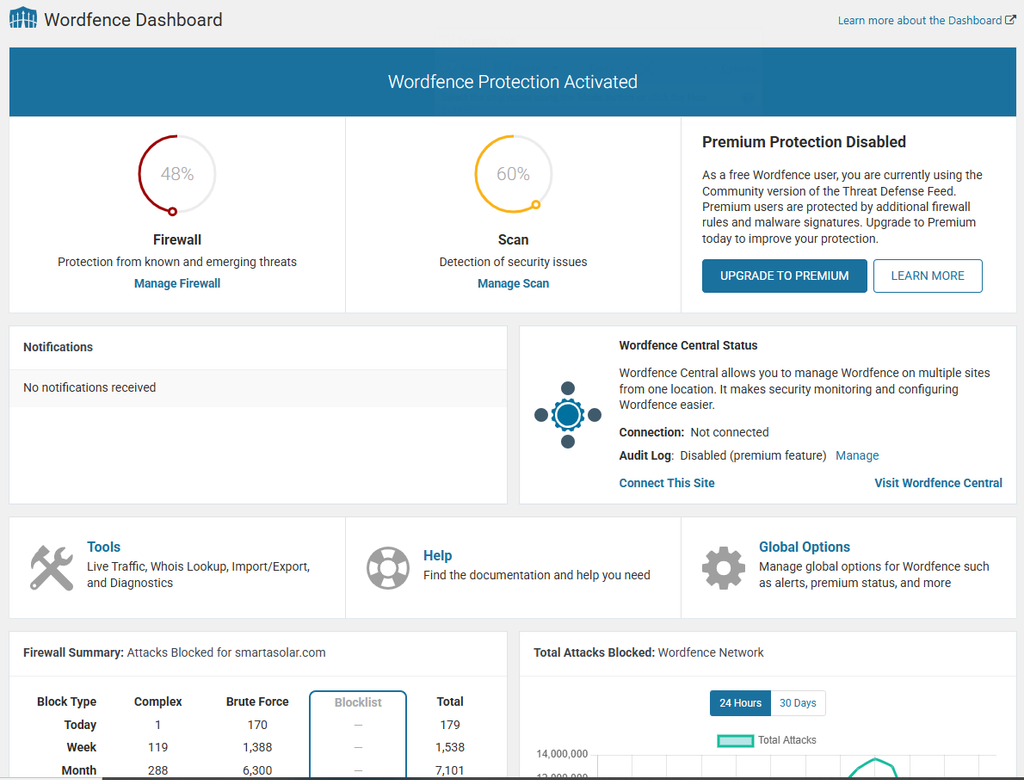
Blocking an IP From Live Traffic
You can also block an IP address directly from the Live Traffic interface.
This can be convenient when you are already investigating a suspicious request.
If you identify a visitor whose activity clearly indicates malicious behavior, Wordfence provides blocking options from the relevant traffic information.
This saves you from manually copying the address into another screen.
How to Unblock an IP Address
Sometimes you may accidentally block a legitimate visitor or discover that a block is no longer necessary.
To remove a block, open the Wordfence blocking area and locate the relevant entry.
Select the block and choose Unblock.
Wordfence’s documentation confirms that administrators can select a block entry and use the Unblock option to remove it.
Should You Block IP Ranges?
Wordfence also supports blocking IP ranges.
A range can contain many IP addresses. This can be useful when several malicious addresses appear to originate from the same network.
However, range blocking should be used carefully.
A legitimate hosting provider, internet service provider, company, or public network may contain many genuine users.
Blocking a broad range can therefore prevent legitimate visitors from accessing your website.
Wordfence provides custom pattern blocking for ranges and other criteria, but recommends understanding the network associated with an IP before blocking it.
How to Investigate an IP Before Blocking It
Before permanently blocking an address, investigate its activity.
Consider:
- How many requests has it made?
- What pages did it request?
- Did it attempt to log in?
- Did it trigger firewall rules?
- Is the activity automated?
- Does the behavior appear malicious?
- Is the address associated with a legitimate service?
A WHOIS lookup can also provide information about the network to which an IP belongs.
However, WHOIS information alone does not prove that an IP is malicious. A legitimate server can be compromised, shared, or used by an automated service.
The behavior observed on your website is therefore an important part of the decision.
Be Careful With Your Own IP Address
One of the biggest mistakes administrators can make is blocking their own IP address.
This can happen when aggressive security rules are configured incorrectly or when a site administrator repeatedly fails a login challenge.
If you accidentally block yourself, you may lose access to the WordPress dashboard.
Wordfence provides troubleshooting guidance for situations where legitimate users are blocked.
Before applying major blocking rules, make sure you have another way to access your site if something goes wrong.
IP Blocking Is Not a Complete Security Strategy
Blocking individual IP addresses can help reduce unwanted traffic, but it should not be your only security measure.
Attackers can change IP addresses, use proxies, use VPNs, operate botnets, or launch attacks from compromised systems.
A stronger WordPress security strategy can include:
- Keeping WordPress updated.
- Updating plugins and themes.
- Using strong administrator passwords.
- Enabling two-factor authentication.
- Limiting unnecessary administrator accounts.
- Using a web application firewall.
- Monitoring suspicious activity.
- Maintaining reliable backups.
- Removing abandoned plugins and themes.
Wordfence’s firewall also provides automatic protection and other blocking mechanisms beyond manually entered IP addresses.
Permanent vs Temporary Blocks
Not every suspicious IP needs to be permanently blocked.
Wordfence can have temporary IP blocks associated with certain firewall rules or rate-limiting behavior. Manual IP blocks from the Blocking screen can be permanent.
Temporary blocking can sometimes be preferable when dealing with behavior that may change over time.
For example, an address generating excessive automated requests may not necessarily represent a permanent threat.
Final Thoughts
Blocking an IP address can be a useful WordPress security technique when a specific visitor is clearly generating malicious or abusive traffic.
With Wordfence, administrators can investigate traffic, identify suspicious addresses, and block them through Firewall → Blocking.
However, IP blocking should be used carefully. Blocking the wrong address can prevent legitimate visitors, services, or even the website administrator from accessing the site.
The best approach is to combine IP blocking with regular WordPress updates, strong authentication, firewall protection, monitoring, backups, and good security practices.
KEYNOTES
1. Can Wordfence block an IP address?
Yes. Wordfence provides IP-address blocking through its Firewall → Blocking section.
2. Is a Wordfence IP block permanent?
A manually created IP block from the Blocking screen is permanent until it is removed, while some automatic blocks can have expiration periods.
3. Can I unblock an IP address?
Yes. Select the relevant block in Wordfence and choose Unblock.
4. Should I block every suspicious IP?
No. Investigate the traffic first. Some addresses may belong to legitimate users or shared networks.
5. Can I block an entire IP range?
Yes, Wordfence supports IP ranges and custom patterns, but broad blocks should be used cautiously.
6. Can blocking an IP improve WordPress security?
It can reduce unwanted traffic from known or clearly abusive sources, but it should be combined with other security measures.
Interested in Learning more? Explore our in-depth guides by clicking the highlighted links throughout this article, or browse our blog for additional tutorials, tips, and resources. You’ll find practical information to help you expand your knowledge and stay informed.