How to Install the PHP Imagick Extension in cPanel: Step-by-Step Guide
What Is Imagick?
Imagick is a PHP interface to the ImageMagick API. It allows PHP applications to perform operations such as resizing, cropping, rotating, converting, and modifying images.
ImageMagick itself supports a wide range of image formats, including JPEG, PNG, GIF, TIFF, SVG, PDF, and others, although the available formats depend on the ImageMagick installation and its supporting libraries.
Imagick can therefore be useful when a PHP application needs more advanced image-processing capabilities than the standard PHP image functions provide.
Before Installing Imagick
Before installing the extension, determine which PHP version your server is using.
You can usually check this from your hosting control panel, command line, or a PHP information page.
From a terminal, you can run:
php -vThis displays the PHP version currently associated with the command-line PHP installation.
You should also determine whether Imagick is already installed:
php -m | grep imagickIf the command returns imagick, the extension is already enabled for that PHP environment.
Remember that the PHP version used by the command line may differ from the PHP version used by your website. This is particularly important on servers running multiple PHP versions.
Installing Imagick on cPanel – WHM
If your website uses cPanel and WHM, the installation process can be easier because EasyApache 4 provides tools for managing PHP versions and extensions.
Administrators with WHM access can go to:
WHM → Software → EasyApache 4
From there, select the PHP version you need and search the available PHP extensions.
cPanel’s current documentation explains that EasyApache 4 can install PHP extensions and that PHP extension packages follow an ea-php##-php-module naming convention.
If your server uses PHP 8.2, for example, an extension package may follow a naming pattern such as:
ea-php82-php-imagickThe exact availability depends on your server configuration and supported PHP packages.
After installing the extension, verify that the website is actually using the PHP version for which Imagick was installed.
This is important because installing Imagick for PHP 8.2 does not automatically mean it is enabled for PHP 8.3 or another PHP version.
Installing Imagick on cPanel – Softaculous
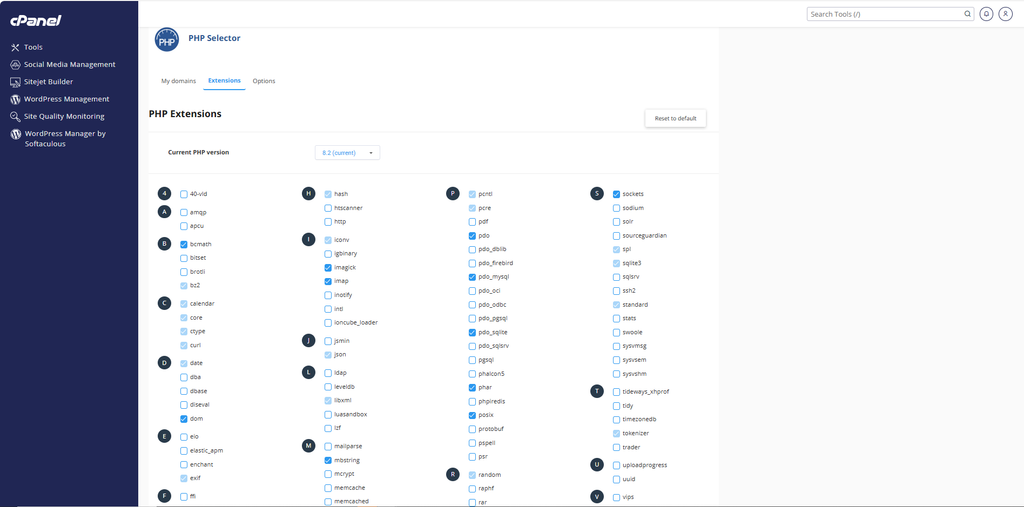
These are the steps to enable Imagick in PHP through Softaculous/cPanel:
- Log in to your cPanel dashboard.
- Scroll down to the Software section.
- Click on Select PHP Version.
- At the top of the page, click the Extensions tab.
- Scroll down or use the search box to find imagick.
- Locate imagick under the I section.
- Check the box next to
imagickto enable it. - The system should automatically save the change, or you may see a success notification confirming that Imagick has been enabled.
- Once enabled, you can verify that Imagick is active on your website or application.
How to Verify Imagick
After installation, verify that PHP recognizes the extension.
Run:
php -mLook for:
imagickYou can also run:
php -r "phpinfo();"Alternatively, create a temporary PHP information page containing:
<?php
phpinfo();
?>
Open the page in your browser and search for imagick.
For security reasons, remove the phpinfo() file after testing because it can expose detailed server configuration information.
Common Imagick Installation Problems
* One common problem is installing the extension for the wrong PHP version.
For example, if your website runs PHP 8.3 but Imagick is installed only for PHP 8.2, the website may still report that Imagick is missing.
* Another common problem is missing ImageMagick libraries. On Windows, the DLL architecture and PHP build must match correctly.
* On Linux, compilation or PECL installation may fail because required ImageMagick development libraries are missing.
* Another issue is forgetting to restart the PHP service after modifying configuration files.
Imagick and WordPress
Imagick is commonly encountered by WordPress administrators because WordPress can use image-processing libraries to generate and manipulate image sizes.
If WordPress reports that Imagick is unavailable, first confirm which PHP version your WordPress installation uses. Then install or enable the matching extension.
If you use shared hosting and do not have server-level access, contact your hosting provider and ask whether the PHP Imagick extension can be enabled for your account.
Final Thoughts
Installing PHP Imagick is not simply a matter of downloading one file and placing it on a server. The correct procedure depends on your operating system, PHP version, architecture, hosting environment, and configuration.
Linux users can often install it through their package manager or PECL. cPanel administrators can use EasyApache 4 to manage PHP extensions, while Windows users need a compatible prebuilt DLL and ImageMagick libraries.
After installation, always verify that Imagick is enabled for the same PHP environment used by your website.
When correctly installed, Imagick can give PHP applications powerful image-processing capabilities and is particularly useful for websites and applications that work heavily with images.
KEYNOTES
1. What is PHP Imagick?
Imagick is a PHP extension that provides access to the ImageMagick image-processing API.
2. Is Imagick the same as ImageMagick?
No. ImageMagick is the image-processing software, while Imagick is a PHP extension that allows PHP applications to use it.
3. How do I check whether Imagick is installed?
Run php -m and look for imagick, or check the Imagick section of phpinfo().
4. Can I install Imagick on shared hosting?
Usually only if your hosting provider supports and enables the extension. Shared-hosting customers normally do not have permission to install server-level PHP extensions themselves.
5. Does Imagick work with WordPress?
Yes. WordPress can use image-processing libraries such as Imagick for handling images.
6. Why does WordPress say Imagick is missing after installation?
The website may be using a different PHP version from the one where Imagick was installed.
Interested in Learning more? Explore our in-depth guides by clicking the highlighted links throughout this article, or browse our blog for additional tutorials, tips, and resources. You’ll find practical information to help you expand your knowledge and stay informed.