

How to Easily Export Tabs in Chrome & Microsoft Edge: Step-by-Step Guide
It is common to have many tabs open while researching a topic, working on a project, studying, shopping, or browsing the internet. However, keeping dozens of tabs open can make Chrome difficult to organize.
You may eventually want to save all the links for later, share them with someone else, or transfer your browsing session to another device.
One useful way to do this is by using a Chrome extension designed to export open tabs. The Export Tabs extension can help collect the URLs from your open tabs and place them into a format that can be copied or saved.
This guide explains how to export tabs in Google Chrome using an Export Tabs extension.
What Is an Export Tabs Extension?
An Export Tabs extension is a browser tool that helps users collect links from open tabs.
Instead of copying every website address manually, the extension can gather the URLs from multiple tabs at once.
Depending on the extension and its available features, you may be able to export:
- The title of each webpage
- The webpage URL
- Links from the current window
- Links from multiple tabs
- Formatted lists that can be copied and saved
This can be useful for research, project organization, sharing resources, and saving browsing sessions.
Step 1: Open the Chrome Web Store
Start by opening the Chrome Web Store in Google Chrome Browser or Microsoft Edge Browser.
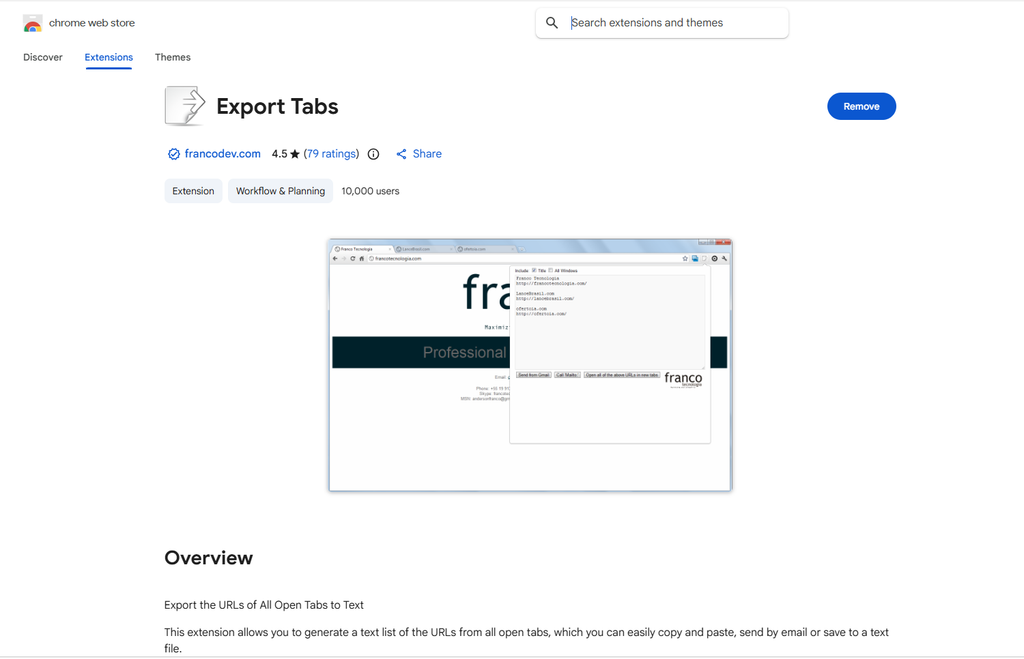
Use the search feature to look for an extension called Export Tabs. (see image below)
Before installing any extension, review the information available on its listing, including its features, permissions, developer details, and user feedback.
Because browser extensions can access browsing-related information depending on their permissions, it is important to install extensions only from sources you trust.
Step 2: Install the Extension
Once you find the Export Tabs extension you want to use, select the option to add it to Chrome.
Chrome may display a message showing the permissions requested by the extension.
Read the information carefully before confirming installation.
After installation, the extension should become available from Chrome’s Extensions menu. You can also pin it to the toolbar for easier access.
Step 3: Open the Tabs You Want to Export
Open all the websites you want to save or export.
For example, you might have several useful pages open while researching a project.
Instead of copying every URL individually, you can use the extension to gather the links.
Before exporting, close any tabs you do not want to include.
Step 4: Open the Export Tabs Extension
Click the Extensions icon in Chrome and select the Export Tabs extension.
If you have pinned the extension, you may be able to click its icon directly from the Chrome toolbar.
The extension should display options based on its available features.
Depending on the version you are using, it may automatically collect information from your currently open tabs.
Step 5: Choose Your Export Format
Many tab-exporting tools allow users to organize links in different formats.
Common formats may include:
- Plain URLs
- Webpage titles and URLs
- Markdown links
- HTML links
- Text lists
Choose the format that best matches what you want to do.
For example, plain URLs may be useful when pasting links into a document, while Markdown or HTML formats may be useful for websites and online publishing.
Step 6: Copy or Save the Exported Tabs
After selecting your preferred format, copy the generated list.
You can then paste the links into:
- A text document
- An email
- A notes application
- A spreadsheet
- A project management tool
- A cloud document
You can also save the exported information as a file if the extension supports that feature.
Why Exporting Tabs Is Useful
Exporting tabs can help improve productivity and browser organization.
Instead of leaving dozens of websites open for several days, you can save the important links and close unnecessary tabs.
This can help you:
- Reduce tab clutter
- Save research resources
- Share useful websites
- Create project reference lists
- Transfer links to another device
- Keep records of useful online sources
Security Tips for Chrome Extensions
Browser extensions can be useful, but they should be installed carefully.
Before installing an extension:
- Check the developer or publisher
- Review requested permissions
- Read recent user feedback
- Remove extensions you no longer use
- Keep Chrome updated
- Avoid installing extensions from suspicious websites
If an extension requests permissions that do not appear necessary for its function, consider whether you really need it.
Final Thoughts
Exporting tabs in Chrome is a simple way to organize and save multiple websites without copying each URL manually. The Export Tabs extension can help collect your open tabs and convert them into a list that can be copied, shared, or saved.
Whether you are researching, studying, working, or simply trying to reduce browser clutter, exporting your tabs can help you stay organized and avoid losing important links.
Before installing any browser extension, always review its permissions and ensure that it comes from a trusted source.
KEYNOTES
Can I export all open Chrome tabs?
Yes. A tab-exporting extension can help collect links from multiple open tabs. This extension works in both Chrome & Microsoft Edge browsers.
Can I save exported tabs as text?
Depending on the extension, you may be able to copy the links into a text document or save them in another supported format.
Is Export Tabs safe to use?
Safety depends on the specific extension. Always review the developer, permissions, and available information before installation.
Can I share exported tabs with someone else?
Yes. You can copy the exported links and send them through email, messaging apps, or documents.
Do I need to keep the tabs open after exporting them?
No. Once you have confirmed that the links were successfully saved, you can close the tabs if you no longer need them.
Interested in Learning more? Explore our in-depth guides by clicking the highlighted links throughout this article, or browse our blog for additional tutorials, tips, and resources. You’ll find practical information to help you expand your knowledge and stay informed.

