
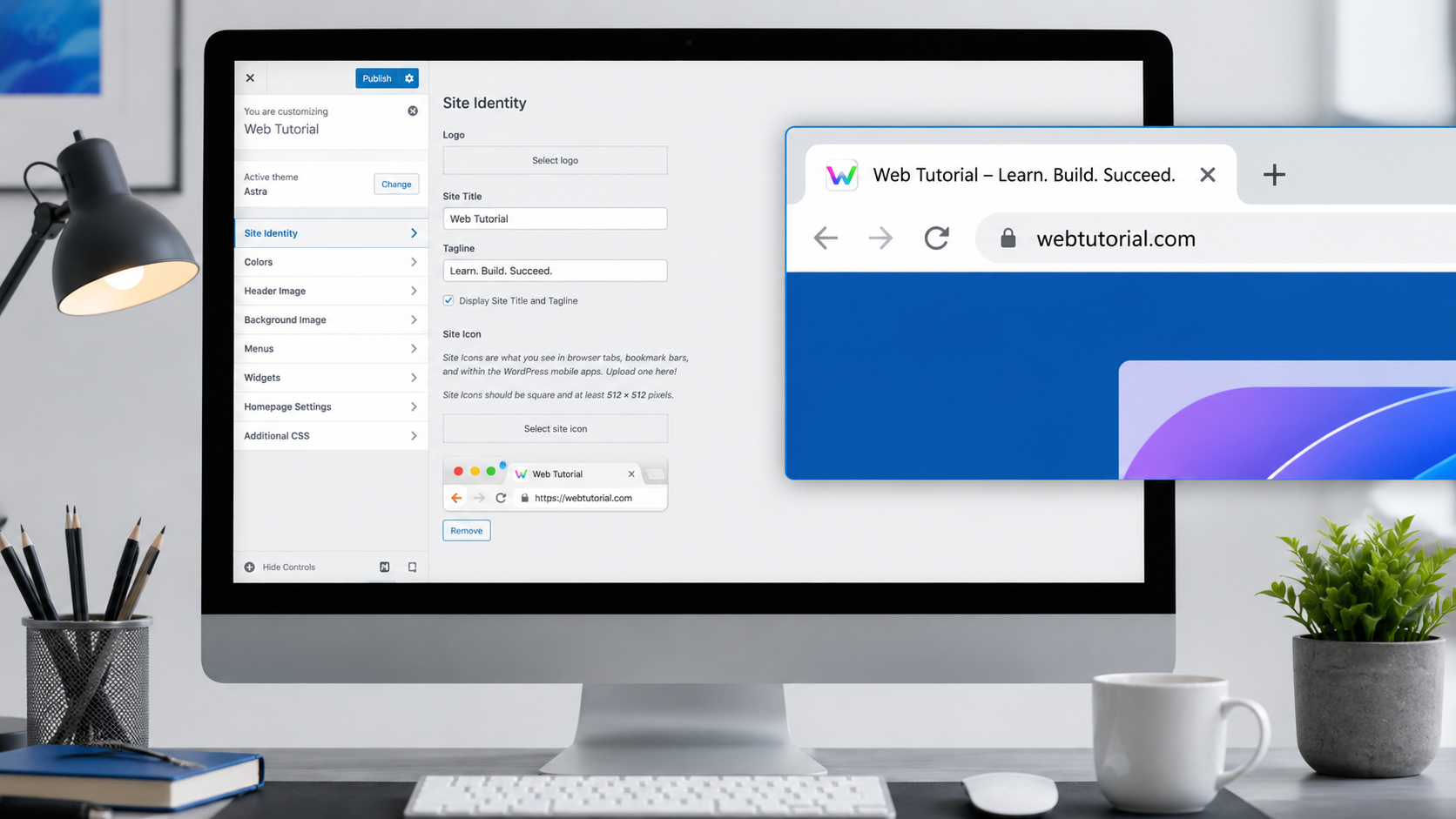
How to Update Your Website Icon (Favicon) in WordPress
What Is a Website Icon?

A website icon, commonly called a favicon (short for “favorite icon”), is the small image that appears in places such as:
- Browser tabs
- Browser bookmarks
- Bookmark bars
- Browser history
- Mobile home screen shortcuts
- Some search engine results
Although small, a favicon helps strengthen your website’s visual identity.
Why Is a Website Icon Important?
A custom website icon offers several benefits.
* Improves Brand Recognition
Visitors can quickly recognize your website among multiple open browser tabs.
* Looks More Professional
A website without a favicon may appear unfinished or less trustworthy.
* Enhances User Experience
A recognizable icon makes it easier for users to return to your website later.
* Supports Mobile Devices
Many smartphones use the site icon when users add a website shortcut to their home screen.
Recommended Website Icon Size
WordPress recommends uploading a square image that is at least:
512 × 512 pixels
Although browsers display favicons at much smaller sizes (such as 16 × 16 or 32 × 32 pixels), starting with a high-resolution image ensures it looks sharp across different devices and screen sizes.
For the best results:
- Use a square image.
- Save it as PNG, JPEG, or ICO if supported.
- Keep the design simple.
- Avoid small text that becomes unreadable.
- Use your logo or a simplified version of it.
How to Change Your Website Icon in WordPress
Most modern WordPress themes support changing the site icon through the built-in Customizer.
Step 1: Log In to Your WordPress Dashboard
Open your WordPress admin area and sign in.
Step 2: Go to Appearance
From the left-hand menu, select:
Appearance → Customize
Depending on your theme, you may instead navigate to:
Appearance → Editor
or
Appearance → Theme Settings
Step 3: Open Site Identity
Within the Customizer, click:
Site Identity
This section typically contains:
- Site Title
- Tagline
- Site Icon
Step 4: Select Your Site Icon
Under Site Icon, click:
Select Site Icon
You can:
- Upload a new image.
- Choose an existing image from the Media Library.
Step 5: Crop the Image (If Needed)
WordPress may ask you to crop the image into a perfect square.
Adjust the crop if necessary, then confirm.
Step 6: Save Your Changes
Click:
Publish
Your new favicon will now be associated with your website.
Tips for Creating a Good Website Icon
A favicon should remain recognizable even when displayed at only 16 × 16 pixels.
Good practices include:
- Use a simple logo.
- Limit the number of colors.
- Avoid detailed artwork.
- Avoid tiny text.
- Ensure high contrast.
- Keep the background clean.
Many successful brands use only a single letter or simplified symbol as their favicon.
Common Mistakes to Avoid
Avoid these common errors:
- Uploading a rectangular image.
- Using a low-resolution logo.
- Including small text.
- Forgetting to click Publish.
- Ignoring browser caching.
- Using an image with a cluttered background.
A clean, minimalist design almost always produces the best results.
Best Practices
To ensure your website icon looks professional:
- Use a high-quality version of your logo.
- Upload a 512 × 512 pixel image.
- Keep the design simple.
- Refresh browser caches after updating.
- Maintain consistent branding across your website and social media.
A memorable favicon helps visitors recognize your website instantly.
Final Thoughts
Changing your website icon in WordPress is one of the simplest ways to improve your site’s branding and professionalism. Although small in size, a favicon helps visitors identify your website quickly, strengthens brand recognition, and creates a more polished browsing experience.
With WordPress’s built-in Site Icon feature, you can upload a high-quality image in just a few minutes without writing any code. By following best practices—such as using a simple square logo, the recommended image size, and clearing your cache after updating—you can ensure your website icon looks great across browsers, bookmarks, and mobile devices.
KEYNOTES
1. What is a website icon?
A website icon, also called a favicon, is the small image displayed in browser tabs, bookmarks, and other places to help identify a website.
2. What size should a WordPress site icon be?
WordPress recommends uploading a square image that is at least 512 × 512 pixels.
3. Why can’t I see my new favicon?
Your browser or website may be using cached files. Try clearing your browser cache, website cache, or CDN cache and refresh the page.
4. Can I use my company logo as a favicon?
Yes. However, it is often best to use a simplified version of your logo so it remains clear at very small sizes.
5. Do all WordPress themes support site icons?
Most modern WordPress themes do. If yours does not, you may need to use the theme’s settings panel or manually upload the favicon files.
6. Why Should Your Website Have a Favicon?
A favicon improves brand recognition by making your website easier to identify among multiple open browser tabs, helping visitors quickly recognize and return to your site.
Want to learn more? We’ve written detailed articles on many of the topics mentioned above. Click the highlighted links throughout this guide to explore them or search our blog for additional guides and helpful resources. Stay informed and keep learning!


 in WordPress)