How to Improve Wi-Fi Signal and Get Faster Internet: Easy Tips
A reliable Wi-Fi connection has become an essential part of everyday life. We use wireless internet to stream movies, attend online meetings, browse websites, play games, download files, and connect smart devices. However, slow speeds, weak signals, buffering, and unexpected disconnections can make using the internet frustrating.
The good news is that you may not need to purchase a new internet plan to improve your Wi-Fi experience. Problems with router placement, interference, outdated equipment, network congestion, or poor coverage can all affect wireless performance.
By making a few changes to your home network, you can often improve Wi-Fi coverage and make your connection more reliable. This guide explains practical ways to improve your Wi-Fi signal and get the best possible performance from your internet connection.
Below are some easy and effective tips to help you improve your Wi-Fi signal and enjoy faster internet:
* Place Your Router in a Better Location
One of the simplest ways to improve Wi-Fi is to place your router in a suitable location.
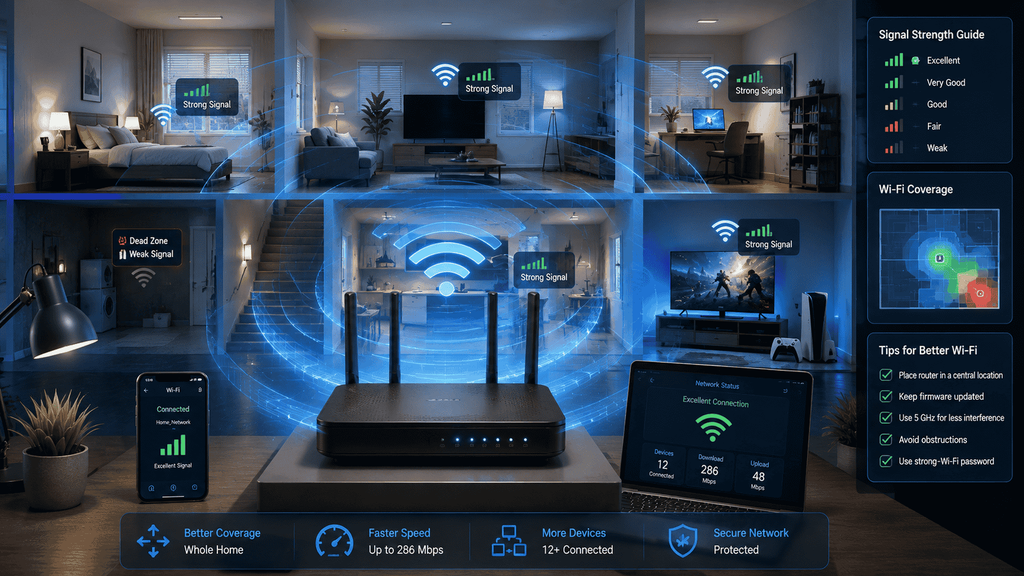
Wi-Fi signals spread outward from the router, so placing it in a central and elevated position can help distribute the signal more evenly throughout your home.
Avoid hiding the router inside:
- Cabinets
- Drawers
- Closed shelves
- Cupboards
- Behind large furniture
Instead, place it on an open surface where possible.
If your router is located at one end of the house, rooms on the opposite side may receive a weaker signal. Moving it closer to the center of your home can improve coverage.
* Keep Your Router Away From Interference
Other electronic devices and physical obstacles can interfere with Wi-Fi signals.
Try to keep your router away from:
- Microwaves
- Bluetooth devices
- Cordless phones
- Large metal objects
- Thick concrete walls
- Aquariums
- Other wireless equipment
Some household materials can weaken wireless signals, particularly thick walls and metal objects.
Keeping your router in an open area with fewer obstacles can help improve its performance.
* Restart Your Router Regularly
Sometimes a simple restart can resolve temporary network problems.
If your internet has become unusually slow or unstable, turn off your router, wait for a short period, and turn it back on.
Allow the router a few minutes to reconnect to your internet service.
Restarting can clear temporary issues and allow the router to establish a fresh connection with your ISP.
However, you should not need to restart your router constantly. If frequent restarts are required, investigate the underlying problem.
* Check Your Internet Speed
Before trying to improve your Wi-Fi, determine whether the problem is actually your wireless network.
Run an internet speed test while standing close to your router. Then perform another test from the room where you experience slow speeds.
If the connection is fast near the router but significantly slower farther away, the problem is probably related to Wi-Fi coverage.
If speeds are slow everywhere, the problem may involve your internet plan, ISP, router, or network configuration.
* Connect Important Devices With Ethernet
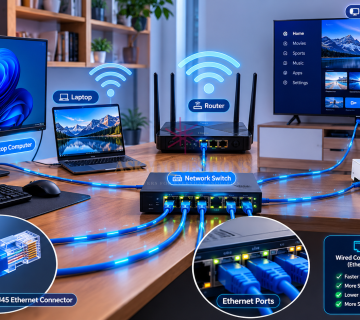
Wi-Fi is convenient, but a wired Ethernet connection can provide a more stable connection for devices that remain in one location.
Consider using Ethernet for devices such as:
- Desktop computers
- Gaming consoles
- Smart TVs
- Network storage devices
- Work computers
Using a wired connection for high-bandwidth devices can also reduce the amount of traffic competing for wireless bandwidth.
* Use the Correct Wi-Fi Band
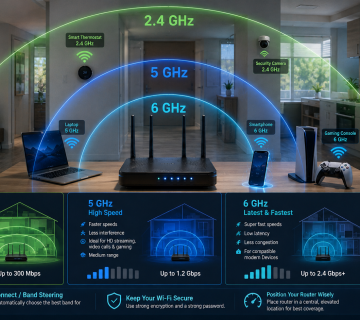
Modern routers commonly support multiple Wi-Fi frequency bands, such as 2.4 GHz and 5 GHz. Newer equipment may also support additional bands, depending on the Wi-Fi standard.
The 2.4 GHz band generally provides better range and can pass through obstacles more effectively, but it may experience more interference.
The 5 GHz band can offer faster speeds and more available channels, but its range is usually shorter.
If your device is close to the router, using 5 GHz may provide better performance. For devices farther away, 2.4 GHz may sometimes provide a more reliable connection.
* Reduce the Number of Connected Devices
Every connected device uses some portion of your network’s available resources.
A busy home network may contain:
- Smartphones
- Laptops
- Smart TVs
- Security cameras
- Tablets
- Game consoles
- Smart speakers
- Streaming devices
Disconnect devices that are no longer being used.
If your router supports it, you may also be able to view connected devices through its administration interface and identify anything unfamiliar.
* Update Your Router’s Firmware
Router manufacturers periodically release firmware updates that can improve security, stability, compatibility, and performance.
Check your router manufacturer’s instructions to determine whether a newer firmware version is available.
Keeping your router updated is especially important because outdated firmware may contain known security vulnerabilities.
Avoid interrupting the router during a firmware upgrade.
* Consider a Wi-Fi Extender or Mesh System
If your home is large or has areas where the Wi-Fi signal is consistently weak, additional wireless equipment may help.
A Wi-Fi extender can receive the existing wireless signal and retransmit it to areas with poor coverage.
However, the extender itself needs to receive a sufficiently strong signal. Placing it in a location where the original Wi-Fi is already extremely weak may produce poor results.
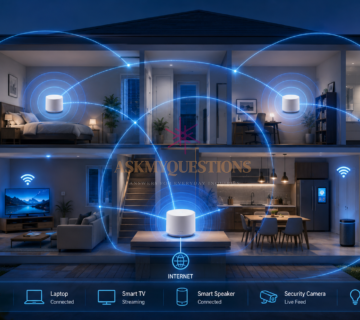
A Mesh Wi-Fi system can be a better solution for larger homes because multiple nodes work together to provide broader wireless coverage.
* Improve Your Router’s Security
Unexpected devices connected to your network can consume bandwidth and potentially create security risks.
Use a strong Wi-Fi password and modern wireless security whenever supported by your router and devices.
Avoid sharing your Wi-Fi password unnecessarily.
If you believe someone has unauthorized access, change your Wi-Fi password and reconnect your devices.
* Upgrade/Change Your Router When Necessary
Older routers may not provide the performance, range, or capacity needed by modern households.
Consider upgrading if your router:
- Is several years old
- Does not support newer Wi-Fi standards
- Frequently disconnects
- Struggles with many connected devices
- Has limited configuration options
However, upgrading your router will not automatically increase the speed provided by your ISP. Your internet plan and service quality still place limits on your maximum internet speed.
* Contact Your Internet Service Provider
If your Wi-Fi is strong but your internet connection remains slow, the issue may be outside your home network.
Contact your ISP if you experience:
- Frequent outages
- Consistently low speeds
- High latency
- Unexplained disconnections
- Problems affecting multiple devices
Your ISP may be able to identify service problems, check your connection, or recommend a suitable plan.
In Summary
Improving your Wi-Fi does not always require expensive equipment or a faster internet subscription. Start by placing your router in a central, elevated, and open location. Reduce interference, restart the router when necessary, check your actual internet speed, and make sure your router firmware is up to date.
For larger homes, a Wi-Fi extender or mesh system can improve coverage, while Ethernet connections can provide better stability for important stationary devices.
Most importantly, identify where the problem originates before spending money on new equipment. If your internet is slow only in certain rooms, focus on Wi-Fi coverage. If it is slow everywhere, investigate your router, internet plan, or ISP.
With the right setup and a little troubleshooting, you can create a faster, more reliable, and better-performing Wi-Fi network throughout your home.
KEYNOTES
- Why is my Wi-Fi signal weak?
A weak Wi-Fi signal can be caused by distance from the router, thick walls, interference, poor router placement, or outdated equipment.
- Does restarting my router make Wi-Fi faster?
Restarting your router can resolve temporary connection problems, but it does not permanently increase your internet plan’s maximum speed.
- Should I use 2.4 GHz or 5 GHz Wi-Fi?
5 GHz can provide faster speeds at shorter distances, while 2.4 GHz generally provides better range. The best choice depends on your device and home environment.
- Will a Wi-Fi extender increase my internet speed?
An extender can improve coverage in areas with weak Wi-Fi, but it does not increase the internet speed provided by your ISP.
- Is a mesh Wi-Fi system better than an extender?
For larger homes or homes with multiple Wi-Fi dead zones, a mesh system can provide more consistent coverage than a traditional extender.
- Why is Wi-Fi slow when many people are connected?
Multiple devices share the available wireless and internet resources. Heavy streaming, gaming, downloads, and other activities can increase network congestion.
- Does a better router increase internet speed?
A newer router can improve wireless performance, coverage, and the number of devices your network can handle. However, your ISP’s internet plan still determines the maximum internet speed available to you.
- How can I make my Wi-Fi more secure?
Use a strong Wi-Fi password, enable modern wireless security supported by your router, keep router firmware updated, and regularly check for unfamiliar connected devices.
READ FURTHER:
- What is Mesh?
- Understanding Wi-Fi Band
- Understanding Ethernet
Interested in Learning more? Explore our in-depth guides by clicking the highlighted links throughout this article, or browse our blog for additional tutorials, tips, and resources. You’ll find practical information to help you expand your knowledge and stay informed. VIST WWW.ASKMYQUESTIONS.COM