How to Resize an Image Online with ResizePixel: Change Image Width and Height Without Downloading an App
What Are Image Dimensions?
Image dimensions refer to the width and height of an image measured in pixels.
For example:
- 800 × 600 pixels
- 1024 × 768 pixels
- 1920 × 1080 pixels
- 512 × 512 pixels
The first number represents the image’s width, while the second represents its height(BOLD).
Changing the dimensions alters the number of pixels in the image, which can affect both its appearance and file size.
Why Resize an Image?
There are many reasons to resize a photo.
Common situations include:
- Uploading a profile picture.
- Meeting passport or ID photo requirements.
- Creating blog images.
- Preparing website graphics.
- Optimizing images for social media.
- Reducing upload times.
- Saving storage space.
- Meeting online application requirements.
Resizing can also improve website performance by reducing image loading times.
What Is ResizePixel?
ResizePixel is a free, browser-based image editing tool that allows users to edit images/pictures.
Because everything runs in your web browser, there is no need to download or install software.
The service supports many common image formats, including:
- JPG
- JPEG
- PNG
- WEBP
- GIF
- BMP
How to Resize an Image Using ResizePixel
Follow these simple steps:
Step 1: Open ResizePixel
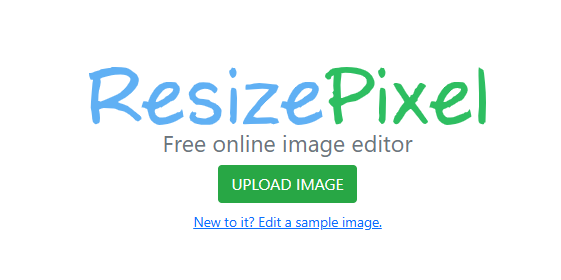
Visit the ResizePixel website in your preferred web browser.
WWW.RESIZEPIXEL.COM
You’ll be presented with an option to upload an image.
Step 2: Upload Your Image
Click Upload Image.
Select the picture from your computer, smartphone, or tablet.
The image will load into the editor.
Step 3: Open the Resize Tool
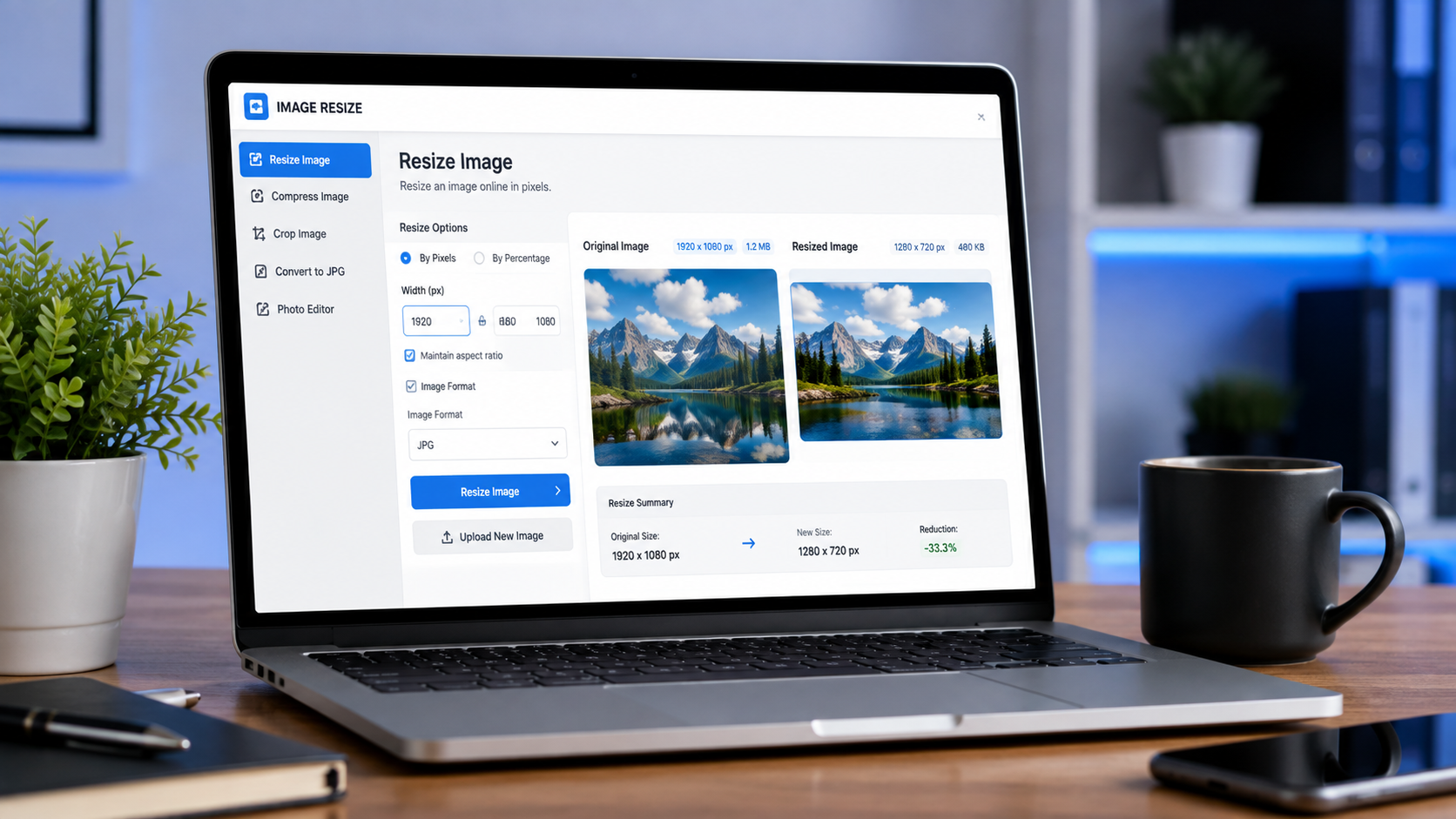
Select the Resize option.
You’ll see fields for:
- Width
- Height
These values represent the image dimensions in pixels.
Step 4: Enter New Dimensions
Type the desired width and height.
For example:
- 512 × 512
- 800 × 800
- 1200 × 675
- 1920 × 1080
If the Lock Aspect Ratio option is enabled, changing one value automatically updates the other to maintain the image’s original proportions.
Keeping the aspect ratio locked helps prevent the image from appearing stretched or distorted.
Step 5: Apply the Resize
Click the Resize button.
The website processes the image within a few seconds.
Step 6: Download the Image
After resizing is complete, click Download.
Save the new image to your device.
Your original image remains unchanged unless you overwrite it yourself.
Tips for Better Results
To maintain image quality:
- Start with the highest-quality original image.
- Keep the aspect ratio locked.
- Avoid enlarging very small images excessively.
- Use PNG for graphics and logos.
- Use JPG for photographs when smaller file sizes are needed.
- Preview the resized image before downloading.
Common Mistakes to Avoid
Avoid these errors:
- Stretching the image by changing width and height independently.
- Enlarging tiny images too much.
- Before uploading your image, make sure it is saved in a supported image file format. ResizePixel supports JPG, JPEG, PNG, WEBP, GIF, and BMP files, so images in other formats may not upload or process correctly.
- Forgetting to save the resized version.
- Avoid confusing image dimensions with file size—dimensions refer to an image’s width and height in pixels, while file size is the amount of storage space the image occupies.
Remember that a larger pixel size does not always improve image quality if the original image has limited resolution(BOLD)
Final Thoughts
Resizing images is essential for meeting the size requirements of websites, social media platforms, and online documents. With ResizePixel, you can quickly resize images online by adjusting their width and height while maintaining the correct aspect ratio—all without downloading or installing software. In just a few clicks, you can create high-quality images that are ready for websites, online forms, social media, and other digital projects.
Avoid confusing image dimensions, file size, and image enhancement—dimensions control an image’s width and height, file size affects storage and upload limits, and enhancement improves visual quality.
KEYNOTES
1. What are image dimensions?
Image dimensions are the width and height of an image measured in pixels.
2. Does resizing reduce image quality?
Reducing image size usually has little visible impact. Enlarging a small image significantly may reduce sharpness and clarity.
3. Should I keep the aspect ratio locked?
It is generally advisable to keep the aspect ratio locked, as this prevents images from becoming stretched or distorted when resizing. However, if you know what you are doing, you can unlock the aspect ratio to achieve the desired result.
4. Is ResizePixel free?
Yes. ResizePixel offers free online tools for resizing, cropping, compressing, and editing images directly in your web browser.
Interested in learning more? Explore our in-depth guides by clicking the highlighted links throughout this article, or browse our blog for additional tutorials, tips, and resources. You’ll find practical information to help you expand your knowledge and stay informed.