How to Pin and Identify Your Location Using Google Maps
What Is a Pin in Google Maps?
A pin is a marker used to identify a particular point on a map.
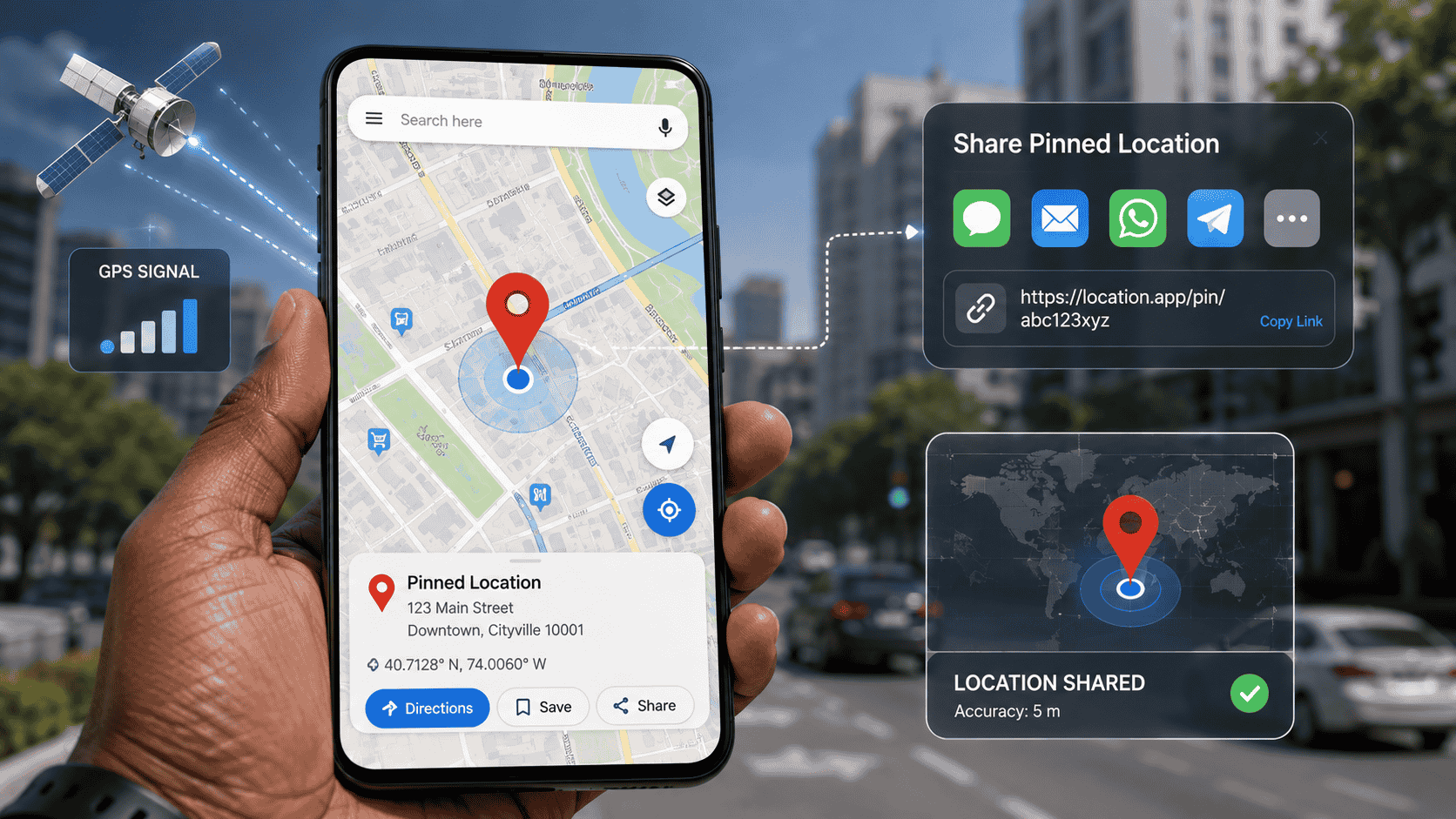
When you drop a pin, Google Maps can provide information associated with that location, such as an address or nearby place information when available.
A dropped pin can also be shared with another person.
This makes the feature particularly useful when describing locations that are difficult to find using an ordinary address.
How to Find Your Current Location
Before dropping a pin, you may want to identify where you are currently located.
Open Google Maps on your smartphone.
Make sure location services are enabled.
Look for the blue location indicator on the map.
This represents your device’s estimated current position.
If the location appears inaccurate, make sure your phone has location access enabled for Google Maps and move to an area with better positioning conditions if possible.
Remember that GPS is not perfectly accurate in every environment.
How to Drop a Pin on Google Maps
The process is straightforward.
Open Google Maps.
Move the map to the location where you want to place the pin.
On Android, touch and hold the desired point on the map. Google Maps will place a pin at that location.
Once the pin appears, a location panel will normally appear at the bottom of the screen.
Tap the panel to view more information.
You may see an address, coordinates, nearby places, or other location information.
How to Pin Your Exact Location
If you want to identify your current position precisely, first locate the blue location indicator.
Zoom in on the map.
Then position the map carefully around the point you want to identify.
If necessary, drop a pin directly on the desired location.
This can be useful when GPS gives you an approximate position but you need to identify a specific entrance, building, road junction, or meeting point.
How to Share a Dropped Pin
After dropping a pin, tap the location panel.
Google Maps provides sharing options that allow you to send the location through compatible messaging or communication applications. Google’s help documentation specifically describes using the Share option after dropping a pin.
You can share the location with someone through messaging applications, email, or other supported services.
The recipient can then open the location in a mapping application and use it for navigation.
How to Identify a Location Without a Street Address
One of the major advantages of dropped pins is that they can identify places that do not have a conventional address.
For example, imagine that you are standing:
- At a beach.
- On a hiking trail.
- Inside a large park.
- Near a construction site.
- At an open field.
- At a rural property.
- Near a particular entrance.
You may not have an exact street address.
Dropping a pin can still provide a precise digital reference point.
Using Plus Codes
Google Maps also supports Plus Codes, which provide a digital way to identify specific locations.
Google explains that Plus Codes can be used to define specific locations, including different entrances to the same building or places without conventional addresses.
To obtain a Plus Code, find the desired location and drop a pin.
Open the location information panel and look for the Plus Code.
You can copy and share it with another person.
This can be especially useful for delivery locations and areas where traditional addresses are difficult to use.
How to Label a Location
Google Maps also allows users to create private labels for places.
For example, you might label a location:
Home
Office
Meeting Point
Family Property
According to Google, private labels are visible to you and can appear in your map, search suggestions, and other Google services.
To add a label, open Google Maps, search for an address or drop a pin, open the location information, and select Label when the option is available.
How to Share Your Current Location
A dropped pin and live location sharing are not exactly the same thing.
A dropped pin identifies a particular point on the map.
Location sharing can allow another person to see where you are as your position changes.
If someone simply needs to know where you are meeting them, a dropped pin may be sufficient.
If someone needs to track your changing position during a journey, a location-sharing feature may be more appropriate.
Always consider privacy before sharing your location.
How to Correct a Wrong Pin
Sometimes a location or address may appear incorrectly on Google Maps.
Google provides tools for reporting or correcting certain address and pin problems.
For example, Google Maps allows users to move the map to the correct building position when submitting an address correction.
This is different from simply dropping a private pin for yourself.
If you are correcting a public address, remember that the change may be reviewed and published for other Maps users.
Tips for Accurate Location Pinning
For better accuracy:
- Turn on location services.
- Allow Google Maps to use your location.
- Zoom in before dropping the pin.
- Check the surrounding roads and buildings.
- Confirm the address shown by Google Maps.
- Use Plus Codes when appropriate.
- Share the pin instead of describing the location manually.
- Double-check the pin before sending it.
- Avoid sharing your exact location publicly unless necessary.
Final Thoughts
Knowing how to pin and identify your location in Google Maps is a useful digital skill.
Whether you are meeting someone, arranging a delivery, identifying a property, sharing a difficult-to-describe location, or simply marking a place for future reference, a dropped pin can provide a convenient digital reference.
Google Maps also provides tools such as Plus Codes and private labels that make location identification even more useful.
The key is to zoom in, verify the location, and share the correct pin rather than relying entirely on a street address.
KEYNOTES
1. How do I drop a pin in Google Maps?
Open Google Maps and touch and hold the desired location on the map.
2. Can I share a dropped pin?
Yes. Open the location panel and select Share.
3. What does the blue dot mean?
It generally represents your device’s estimated current location.
4. Can I pin a location without an address?
Yes. You can drop a pin at locations that do not have conventional street addresses.
5. What is a Plus Code?
A Plus Code is a digital location code that can identify a specific place, including locations without conventional addresses.
6. Can I save a pinned location?
You can use features such as labels or saved places depending on the location and your Google Maps setup.
Interested in Learning more? Explore our in-depth guides by clicking the highlighted links throughout this article, or browse our blog for additional tutorials, tips, and resources. You’ll find practical information to help you expand your knowledge and stay informed.