Why People Install Apps Outside the Play Store
Common reasons include:
- Accessing apps unavailable in a particular country
- Installing open-source software
- Testing beta versions released by developers
- Using enterprise or workplace applications
- Downloading apps directly from a developer’s official website
- Using alternative app stores
While these reasons can be legitimate, it is important to verify that the source is trustworthy.
Step-by-Step Instructions for Enabling Installation from Other Sources
The exact menu names may vary slightly depending on your Android version and phone manufacturer.
Method 1: When Opening an APK File
- Download the APK file from a trusted source.
- Tap the downloaded file.
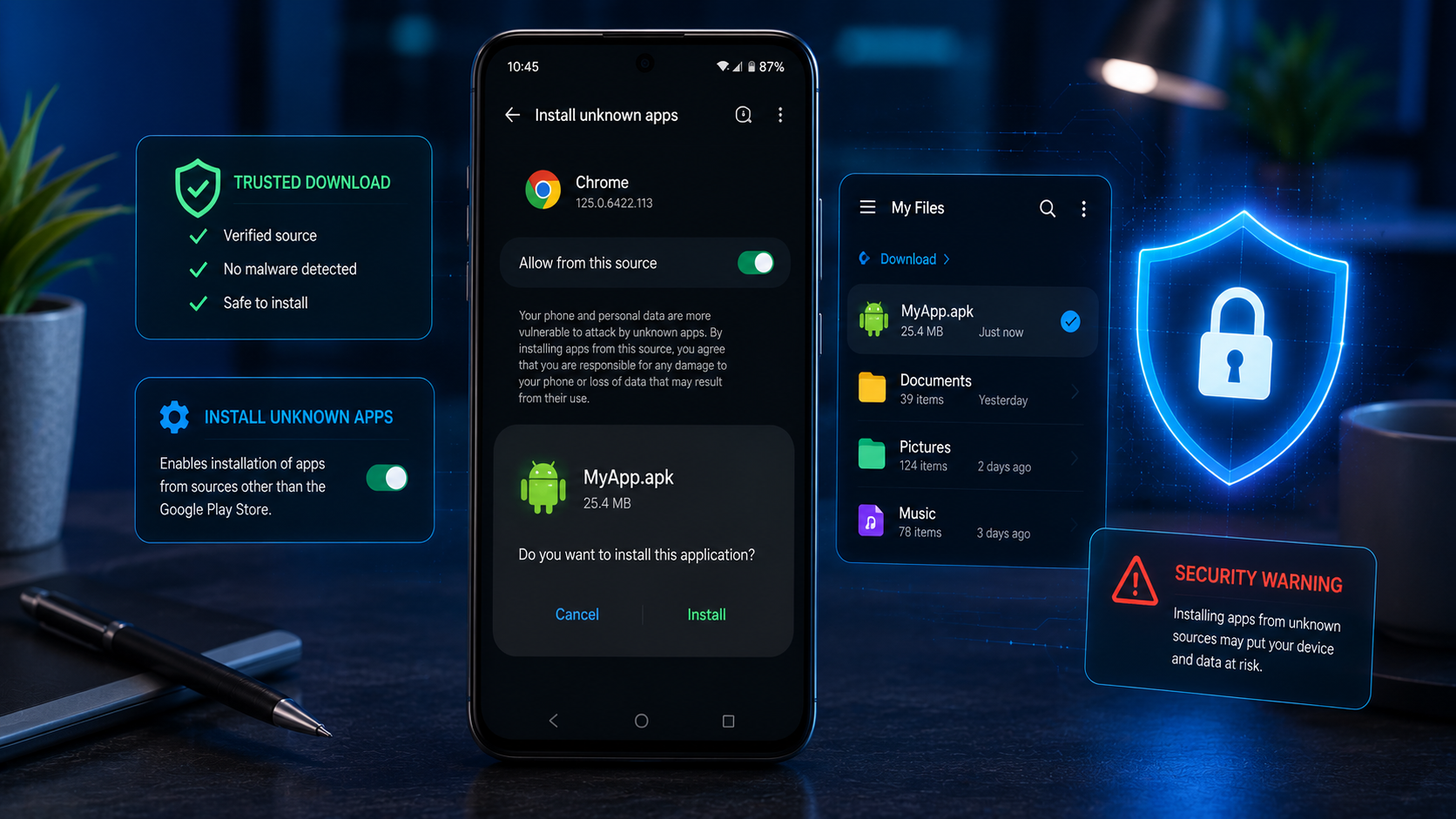
- Android will display a warning that installation is not allowed from that source.
- Tap Settings.
- Enable Allow from this source or Install unknown apps.
- Return to the installer and tap Install.
Method 2: Through Android Settings
- Open Settings.
- Go to Apps or Security.
- Select Special app access (if available).
- Tap Install unknown apps.
- Choose the app you will use to open APK files, such as Chrome or Files.
- Enable Allow from this source.
For better security, enable this setting only for the app you are using and disable it afterward if you no longer need it.
How to Install the APK
After enabling installation from the chosen source:
- Locate the APK file in your Downloads folder or file manager.
- Tap the APK file.
- Review the permissions requested.
- Tap Install.
- Wait for the installation to complete.
- Tap Open to launch the app or Done to exit.
Android may also display a security warning if the app requests sensitive permissions such as access to contacts, SMS messages, or device administration features.
How to Stay Safe When Installing Apps From Other Sources
The biggest risk of installing apps from outside the Play Store is malware. Follow these best practices to reduce that risk.
1. Download Only from Trusted Sources
Prefer:
- The developer’s official website
- Reputable alternative app stores
- Well-known open-source repositories
Avoid random download websites that bundle APK files with advertisements or suspicious installers.
2. Check the Developer
Verify:
- The developer’s name
- Official website
- User reviews
- Update history
3. Review Permissions Carefully
Ask yourself whether the requested permissions make sense. For example, a simple calculator app should not need access to your contacts or SMS messages.
4. Use Antivirus or Security Software
Reputable mobile security apps can scan APK files for known threats before installation.
5. Keep Android Updated
Security updates help protect your device from vulnerabilities that malicious apps may attempt to exploit.
Should You Disable “Allow from This Source” Afterward?
Yes. Leaving the setting enabled permanently increases the chance that a malicious APK could be installed accidentally.
After you finish installing the app:
- Go back to Settings.
- Open Install unknown apps.
- Select the app you used for installation.
- Turn off Allow from this source.
This restores Android’s default protection.
What If the APK Won’t Install? Common Errors When You Try To Install APK
Possible reasons include:
| Problem | Solution |
|---|---|
| Unknown sources disabled | Enable installation for the source app |
| APK is corrupted | Download the file again |
| Incompatible Android version | Check the app’s requirements |
| Not enough storage space | Free up device storage |
| App conflicts with an existing version | Uninstall the old version first |
Final Thoughts
Installing Android apps from sources other than the Google Play Store can be useful when you need access to apps that are unavailable through official channels. Android makes this possible through the “Install unknown apps” feature, but it also places more responsibility on the user.
The safest approach is to download APK files only from trusted developers, review permissions carefully, keep your device updated, and disable installation from unknown sources when you are finished. By combining these precautions with good cybersecurity habits, you can enjoy the flexibility of sideloading while minimizing the risks to your device and personal information.
KEYNOTES
1. Is it safe to install apps outside the Play Store?
It can be safe if you download APK files from trusted sources, verify the developer, and review permissions carefully. Untrusted sources carry a higher risk of malware.
2. What is an APK file?
An APK (Android Package) file is the installation package used for Android apps, similar to an installer file on a computer.
3. Why does Android block unknown apps by default?
Android blocks them to help protect users from malicious software that may not have been reviewed by Google or another trusted source.
4. Should I leave “Allow from this source” enabled permanently?
No. It is generally safer to disable the setting after you finish installing the app.
5. Can antivirus software scan APK files?
Yes. Many reputable mobile security apps can scan APK files for known threats before installation.
Want to learn more? We’ve written detailed articles on many of the topics mentioned above. Click the highlighted links throughout this guide to explore them or search our blog for additional guides and helpful resources. Stay informed and keep learning!