How to Fix Wi-Fi Not Connecting on an Android Phone
A Wi-Fi connection makes it easy to browse the internet, stream videos, download apps, send messages, and use online services without relying on mobile data. However, one of the most frustrating smartphone problems is discovering that your Android phone will not connect to Wi-Fi.
Sometimes the problem is simple: the Wi-Fi password was entered incorrectly or the router needs to be restarted. In other cases, the phone may connect to the network but show “No internet access,” or repeatedly disconnect after connecting.
Fortunately, most Wi-Fi connection problems can be fixed without professional assistance. This guide explains practical steps you can follow to troubleshoot Wi-Fi problems on an Android phone, starting with the simplest solutions and moving to more advanced options. Check below for easy solutions you can try first:
1. Check Whether Wi-Fi Is Turned On
Before trying complicated solutions, make sure Wi-Fi is actually enabled.
Swipe down from the top of your Android phone to open the Quick Settings panel and check the Wi-Fi icon.
If Wi-Fi is disabled, tap the icon to turn it on.
You can also open:
Settings → Network & internet → Internet → Wi-Fi
The exact menu names may vary depending on your Android version and phone manufacturer.
2. Check the Wi-Fi Network
Look at the available Wi-Fi networks and confirm that you are trying to connect to the correct one.
If several networks have similar names, it is easy to select the wrong network.
Also check whether other devices can connect to the same Wi-Fi network.
For example, try connecting another phone or laptop.
If other devices also cannot access the internet, the problem may be with the router or internet service rather than your Android phone.
3. Check Your Wi-Fi Password
One of the most common reasons an Android phone cannot connect is an incorrect password.
Wi-Fi passwords are case-sensitive, so check:
- Uppercase letters
- Lowercase letters
- Numbers
- Special characters
- Spaces
If you recently changed your Wi-Fi password, forget the saved network on your phone and reconnect using the new password.
4. Forget and Reconnect to the Network
If your phone remembers the network but refuses to connect, forgetting the network can solve the problem.
Open your Wi-Fi settings and select the network.
Choose:
Forget
Then search for the network again, select it, enter the password, and reconnect.
This removes the saved network configuration and creates a fresh connection.
5. Restart Your Android Phone
A simple restart can resolve temporary software or network problems.
Press and hold the phone’s power button and select Restart.
After the phone starts again, turn Wi-Fi on and try reconnecting.
Restarting can clear temporary processes that may interfere with network connectivity.
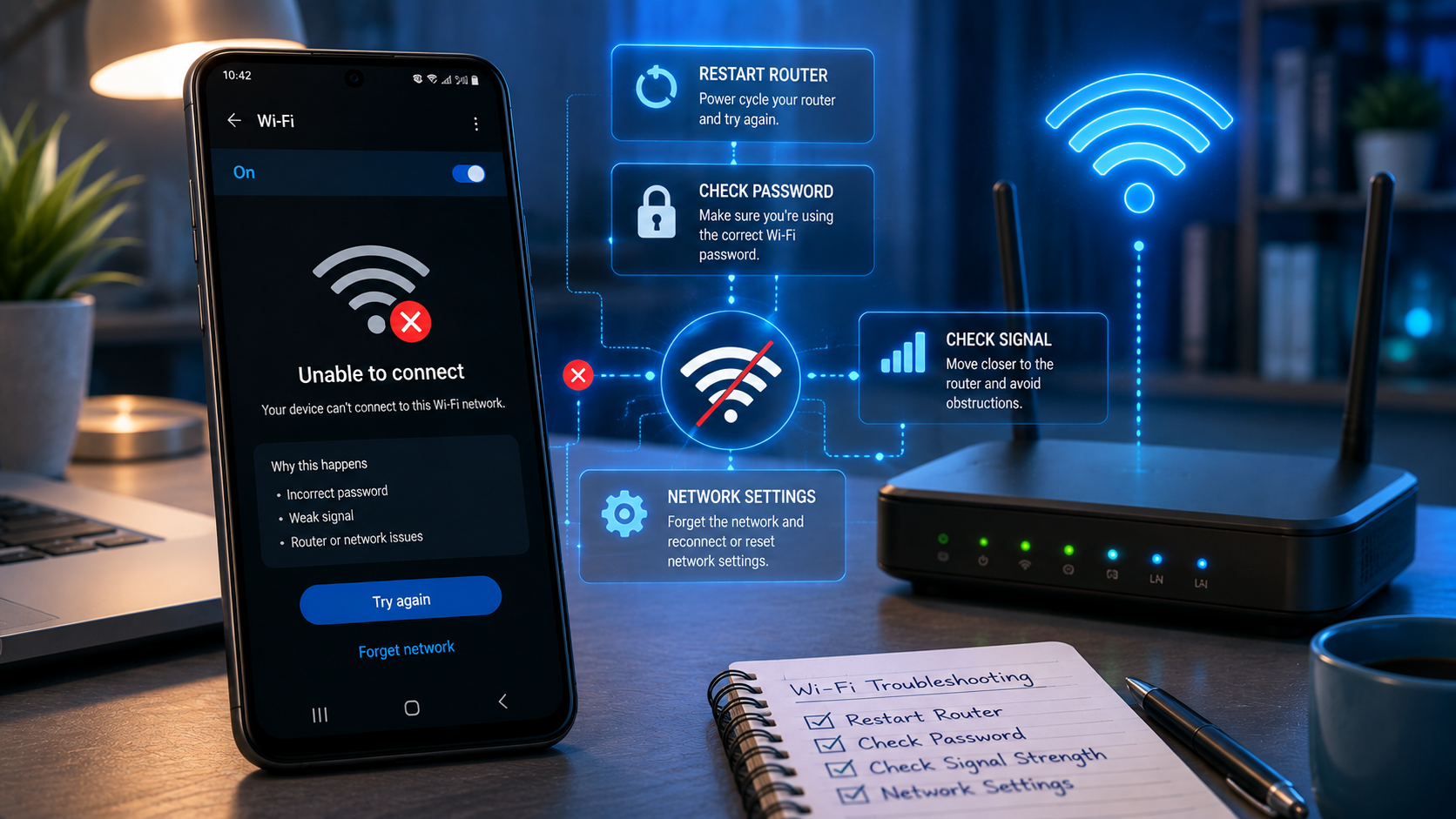
6. Restart Your Wi-Fi Router
If your phone connects to Wi-Fi but cannot access the internet, restart your router.
Turn off the router and unplug its power cable if appropriate.
Wait for approximately 30 seconds, reconnect it, and allow several minutes for the router to establish an internet connection.
Then try connecting your Android phone again.
If other devices also have no internet access, contact your internet service provider if restarting the router does not solve the problem.
7. Move Closer to the Router
Wi-Fi signals become weaker as you move farther away from the router.
Walls, furniture, appliances, and other obstacles can also interfere with the signal.
Move closer to the router and try connecting again.
If Wi-Fi works near the router but not in another room, the issue may be related to signal strength or interference rather than your phone.
8. Turn Airplane Mode On and Off
Another simple troubleshooting technique is to toggle Airplane Mode.
Turn Airplane Mode on and wait for several seconds.
Then turn it off and enable Wi-Fi again.
This can reset some of the phone’s wireless communication functions and may resolve temporary connection problems.
9. Check the Date and Time
Incorrect date and time settings can occasionally cause problems with certain internet services and secure connections.
Open your phone’s date and time settings and enable:
Automatic date and time
This allows the phone to synchronize its clock with the network.
10. Update Your Android Phone
Software bugs can sometimes affect Wi-Fi connectivity.
Check whether your phone has a pending system update.
Go to:
Settings → System → Software update
The exact location may differ between manufacturers.
If an update is available, install it according to the manufacturer’s instructions.
Also update important apps through your device’s official app store.
11. Check Battery Saver and Network Settings
Some Android phones use aggressive battery-saving features that can restrict background network activity.
Temporarily disable battery-saving features and test the Wi-Fi connection.
You should also check whether a VPN, private DNS configuration, or security application is interfering with your connection.
If the problem started after installing or changing a network-related app, temporarily disable the app to determine whether it is responsible.
12. Reset Network Settings
If nothing else works, consider resetting your network settings.
This can remove problematic Wi-Fi, mobile network, and Bluetooth configurations.
Look for an option similar to:
Settings → System → Reset options → Reset Wi-Fi, mobile & Bluetooth
The exact wording varies by Android manufacturer and software version.
Remember that resetting network settings can remove saved Wi-Fi passwords and other network configurations, so you will need to reconnect afterward.
13. Check the Router’s Network
If your phone still cannot connect, investigate the router.
Check whether:
- The router is powered on.
- The Wi-Fi indicator is active.
- Other devices can connect.
- The internet service is working.
- The router has reached its device limit.
- Access controls are blocking your phone.
If you manage the router, you may also want to restart it or review its configuration.
14. When to Seek Professional Help
If your Android phone cannot connect to any Wi-Fi network while other devices work normally, the problem could be related to the phone’s software or hardware.
Consider contacting the a qualified technician if:
- Wi-Fi repeatedly turns itself off.
- The Wi-Fi option is missing.
- The phone cannot detect nearby networks.
- Wi-Fi fails after a physical impact or liquid damage.
- Network resets do not help.
Avoid opening or repairing the phone yourself unless you have the necessary technical knowledge.
Final Thoughts
Wi-Fi connection problems on Android phones can be frustrating, but many can be resolved with a few simple troubleshooting steps. Start by checking the Wi-Fi connection and password, then forget and reconnect to the network. Restarting both the phone and router can also solve many temporary problems.
If the problem continues, check signal strength, update your software, review network-related settings, and consider resetting network settings as a final troubleshooting step.
The key is to determine whether the problem comes from your Android phone, the Wi-Fi router, or the internet service itself. Testing another device on the same network is one of the easiest ways to narrow down the cause.
With a systematic approach, you can often restore your Android phone’s Wi-Fi connection without needing professional assistance.
KEYNOTES
1. Why won’t my Android phone connect to Wi-Fi?
Common causes include an incorrect password, router problems, weak signal, saved network errors, software issues, or incorrect network settings.
2. Why does my Android phone connect to Wi-Fi but have no internet?
The router may be connected to Wi-Fi but unable to reach the internet. Restart the router and test another device to determine whether the problem affects the entire network.
3. Should I forget the Wi-Fi network?
Yes. Forgetting and reconnecting to the network can fix problems caused by corrupted or outdated saved Wi-Fi information.
4. Will resetting network settings delete my photos?
Normally, resetting network settings does not delete personal files such as photos or videos. However, it removes saved network configurations, including Wi-Fi passwords and some Bluetooth settings.
5. Why is my Wi-Fi slow on Android?
A weak signal, network congestion, distance from the router, interference, router problems, or an overloaded internet connection can cause slow Wi-Fi.
6. Why can’t my Android phone see my Wi-Fi network?
The router may be out of range, the Wi-Fi network may be hidden or disabled, or the phone may have a wireless configuration problem. Restarting the router and phone can help.
7. When should I contact a technician?
Contact professional support if your phone cannot detect or connect to any Wi-Fi network after basic troubleshooting, especially if the device has suffered physical or liquid damage.
Interested in learning more? Explore our in-depth guides by clicking the highlighted links throughout this article, or browse our blog for additional tutorials, tips, and resources. You’ll find practical information to help you expand your knowledge and stay informed.