What Is a Google Business Profile?
A Google Business Profile is a free business listing that allows eligible businesses to manage information that can appear across Google Search and Google Maps.
A properly maintained profile can help customers discover important information about a business before visiting.
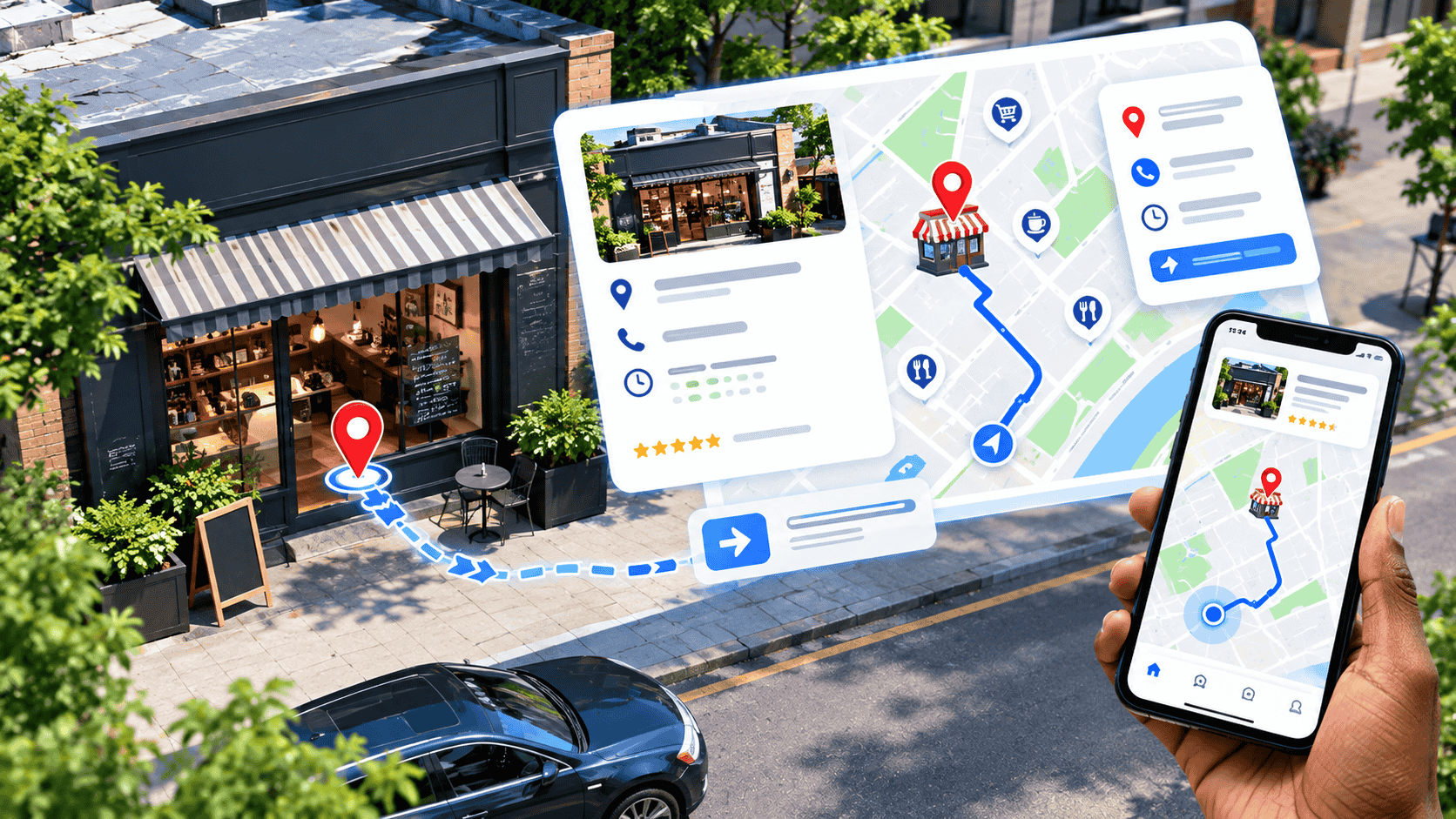
Depending on the business, customers may see the business name, address, telephone number, website, operating hours, photos, reviews, services, and directions.
Keeping these details accurate is important because incorrect information can cause customers to visit the wrong location or struggle to contact the business.
Before Adding Your Business
Before creating or claiming a business listing, prepare the correct information.
You should have your official business name, accurate address, telephone number, website if available, business category, opening hours, and other relevant information.
Make sure the address actually represents the location where the business operates.
Google has eligibility and verification requirements, so not every type of business or location can necessarily be represented in the same way.
If you operate a service-area business without a customer-facing location, the appropriate setup may be different from that of a traditional shop or office.
Step 1: Open Google Business Profile
Start by accessing Google’s official Business Profile tools.
Search for the Google Business Profile service while signed into the Google account you want to use to manage the business.
If your business already appears on Google Maps, do not immediately create a second listing. First check whether the existing profile can be claimed or managed.
Duplicate listings can create confusion for customers and may cause management problems.
Step 2: Search for Your Business
Search Google Maps or Google Search for your business name.
If the business already has a listing, review the information carefully.
If you are authorized to manage the business, use Google’s available process to claim or request access to the profile.
If no listing exists, follow Google’s process for adding a new business.
Step 3: Enter the Business Name
Use the actual business name rather than adding unnecessary keywords.
For example, if your business is officially called “Bright Computer Services,” avoid changing the name to something like “Bright Computer Services Best Cheap Computer Repair Lagos” simply to attract searches.
Accurate business information is more appropriate and can help maintain a professional online presence.
Step 4: Choose the Correct Business Category
Selecting an appropriate primary category helps Google understand what your business does.
Choose the category that most accurately describes your main business activity.
You may also be able to add additional categories where appropriate.
Do not select unrelated categories simply because they appear popular.
Step 5: Add Your Business Address
Enter the complete and accurate physical address where customers can find your business, if your business is eligible to display an address.
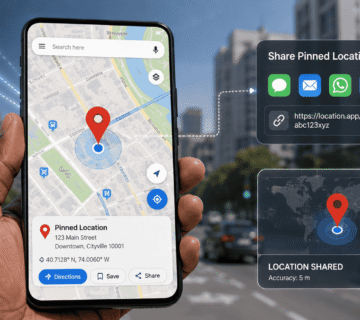
Depending on the interface and business type, Google may ask you to position your business on a map.
This step is particularly important when an address is difficult for map systems to identify precisely.
Review the marker carefully and make sure it points to the correct location.
Step 6: Adjust the Map Pin
If the address is correct but the map marker is slightly misplaced, Google may provide an option to adjust the location.
Place the marker as accurately as possible.
For a physical store, the pin should identify the location customers should visit.
An incorrectly positioned marker can cause customers to arrive at a nearby road, building, or completely different location.
Step 7: Add Contact Information
Add your business phone number and website if applicable.
Customers should be able to use these details to contact the business or learn more about its services.
Make sure the telephone number is active and monitored.
If your website is included, check that it works correctly on both computers and smartphones.
Step 8: Verify Your Business
Google may require verification before your business information can be fully managed or displayed.
The verification method offered depends on Google’s assessment of the business and other factors. Available methods can change and may include options such as video, phone, email, or other verification procedures.
Follow the instructions presented in your Google Business Profile account.
Do not attempt to bypass verification requirements or provide false information.
Step 9: Complete Your Profile
After verification, complete as much relevant information as possible.
Add appropriate photos, business hours, services, descriptions, contact information, and other details supported by your profile.
High-quality photographs can help customers understand what your business looks like before visiting.
Keep opening hours updated, particularly during holidays or temporary changes.
Step 10: Check Your Listing
Once your business profile is active, search for it on Google and Google Maps.
Check whether the name, address, phone number, website, opening hours, and map marker are correct.
You can also ask someone unfamiliar with the location to use the listing and directions. This can reveal problems that may not be obvious to you.
Common Problems
One common issue is creating duplicate listings when a business already exists.
Another is using an incorrect address or map position.
Some businesses may also experience verification difficulties. In such situations, follow Google’s official guidance rather than repeatedly creating new profiles.
If your business moves, update the existing profile rather than creating a completely new listing unless Google’s guidelines specifically require another approach.
Why Accurate Location Information Matters
Customers increasingly rely on digital maps to decide where to shop, eat, work, or obtain services.
An incorrect address can result in missed customers, unnecessary phone calls, poor customer experiences, and negative reviews.
A correctly maintained business profile gives customers a better chance of finding the business and arriving at the right location.
Final Thoughts
Adding your business address to Google Maps can help customers discover your business and find their way to your location. The most reliable approach is to use Google’s official Business Profile system, provide accurate information, complete the appropriate verification process, and regularly maintain the listing.
Remember that your Google Maps presence should reflect your real business. Avoid fake addresses, misleading business names, duplicate profiles, or inaccurate information.
Once your listing is established, treat it as an important part of your online presence. Keep your address, map pin, opening hours, phone number, website, photos, and other business information up to date.
FAQ
Can I add my business to Google Maps for free?
Yes. Google Business Profile is generally available at no charge for eligible businesses.
How long does it take for a business to appear on Google Maps?
The timing can vary depending on Google’s review, verification, and processing requirements.
Do I need a physical business address?
It depends on your business type. Service-area businesses may have different options from businesses that serve customers at a physical location.
Can I move my business location on Google Maps?
If your business location changes, you can generally update the existing Business Profile rather than creating a duplicate listing.
Why can’t I verify my business?
Verification options and requirements vary. Follow the verification instructions provided in your Google Business Profile and use Google’s official support resources if you encounter a problem.
Can I add my home address as a business address?
Only if it accurately represents an eligible business location and complies with Google’s Business Profile requirements. Do not use a false address simply to appear in a particular area.