
How to Add an Extension in Google Chrome
Installing an extension is straightforward. The steps and tips for adding an extension in Google Chrome are explained below, helping you install and manage Chrome extensions quickly and easily:
Step 1: Open Google Chrome
Launch Chrome on your Windows, macOS, Linux, or Chromebook device.
Step 2: Visit the Chrome Web Store
Open the Chrome Web Store in your browser using the following link: Chrome Web Store
Use the search bar to find the extension you want to install.
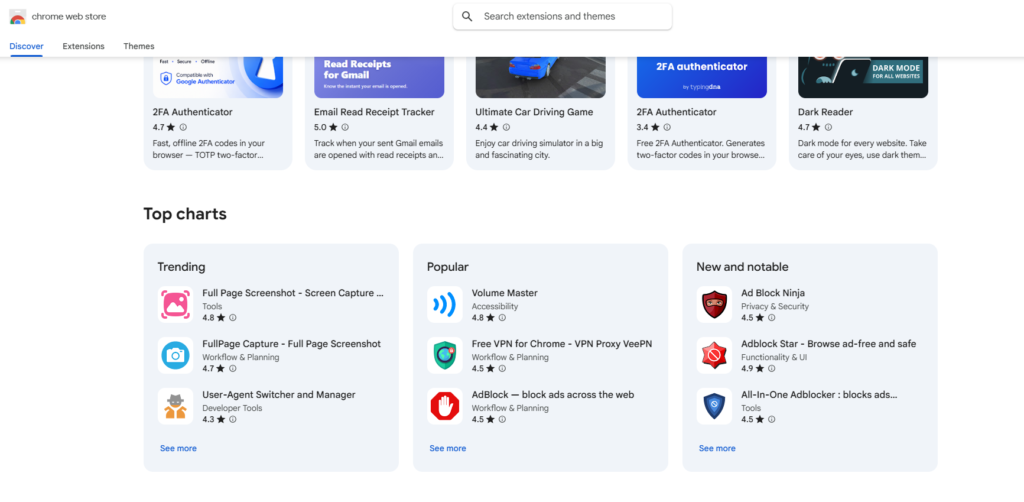
Step 3: Choose an Extension
Click on the extension to open its information page.
Review important details, including:
- Description
- Features
- Ratings
- Reviews
- Developer information
- Permissions required
Taking a minute to review this information can help you avoid installing unreliable extensions.
Step 4: Click “Add to Chrome”
Once you’ve selected an extension, click the Add to Chrome button.
A confirmation window will appear showing the permissions the extension requires.
If you’re comfortable with the requested permissions, click Add Extension.
Chrome will automatically download and install the extension.
Step 5: Confirm Installation
After installation, Chrome usually displays a confirmation message.
Depending on the extension, you’ll either:
- See a new icon beside the address bar.
- Receive a welcome page.
- Be guided through a brief setup process.
Your extension is now ready to use.
How to Pin an Extension
If you use an extension frequently, you can pin it to the Chrome toolbar for quick access.
To do this:
- Click the puzzle-shaped Extensions icon near the address bar.
- Find the extension you want.
- Click the Pin icon next to it.
The extension icon will now remain visible on your toolbar.
How to Manage Installed Extensions
Over time, you may install several extensions.
To manage them:
- Click the three-dot menu in Chrome.
- Select Extensions > Manage Extensions.
From here, you can:
- Enable or disable extensions.
- Remove extensions you no longer need.
- View permissions.
- Configure extension settings.
- Allow extensions in Incognito Mode if supported.
Managing extensions regularly helps keep Chrome organized and efficient.
How to Remove an Extension
If you no longer need an extension:
- Open Manage Extensions.
- Locate the extension.
- Click Remove.
- Confirm your choice.
Alternatively, right-click the extension icon on the toolbar and select Remove from Chrome.
Removing unused extensions can improve browser performance and reduce security risks.
Keynotes: How to Add an Extension in Google Chrome
- Open Google Chrome
Launch Chrome on your Windows, macOS, Linux, or Chromebook device. - Visit the Chrome Web Store
Use the search bar to find the extension you want to install. - Choose an Extension
Review the extension’s description, features, ratings, reviews, developer information, and required permissions. - Click “Add to Chrome”
Review the requested permissions and click Add Extension to install it. - Confirm Installation
After installation, Chrome may display the extension icon, a welcome page, or setup instructions. - Pin an Extension
Click the Extensions puzzle icon and select the Pin icon to keep the extension visible on the Chrome toolbar. - Manage Installed Extensions
Go to Extensions > Manage Extensions to enable, disable, remove, or configure your extensions. - Remove an Extension
Open Manage Extensions, select the extension, click Remove, and confirm your choice. - Review Extensions Regularly
Remove extensions you no longer use to keep Chrome organized and reduce potential security risks.
Interested in Learning more? Explore our in-depth guides by clicking the highlighted links throughout this article, or browse our blog for additional tutorials, tips, and resources. You’ll find practical information to help you expand your knowledge and stay informed. VISIT WWW.ASKMYQUESTIONS.COM